
EASYSTAFF Registration
Step-by-step guide for artists who want to receive payouts from Arcadia via EasyStaff.
0 · Initiate a Payout in Your Dashboard
Go to the main page or the Finances section of your Arcadia personal account and click the payout button.
When choosing a payout method — select EasyStaff.
Enter your real name and email in the corresponding fields. An invitation to join EasyStaff will be sent to the specified email if you are not already registered.
1 · Invitation to EasyStaff
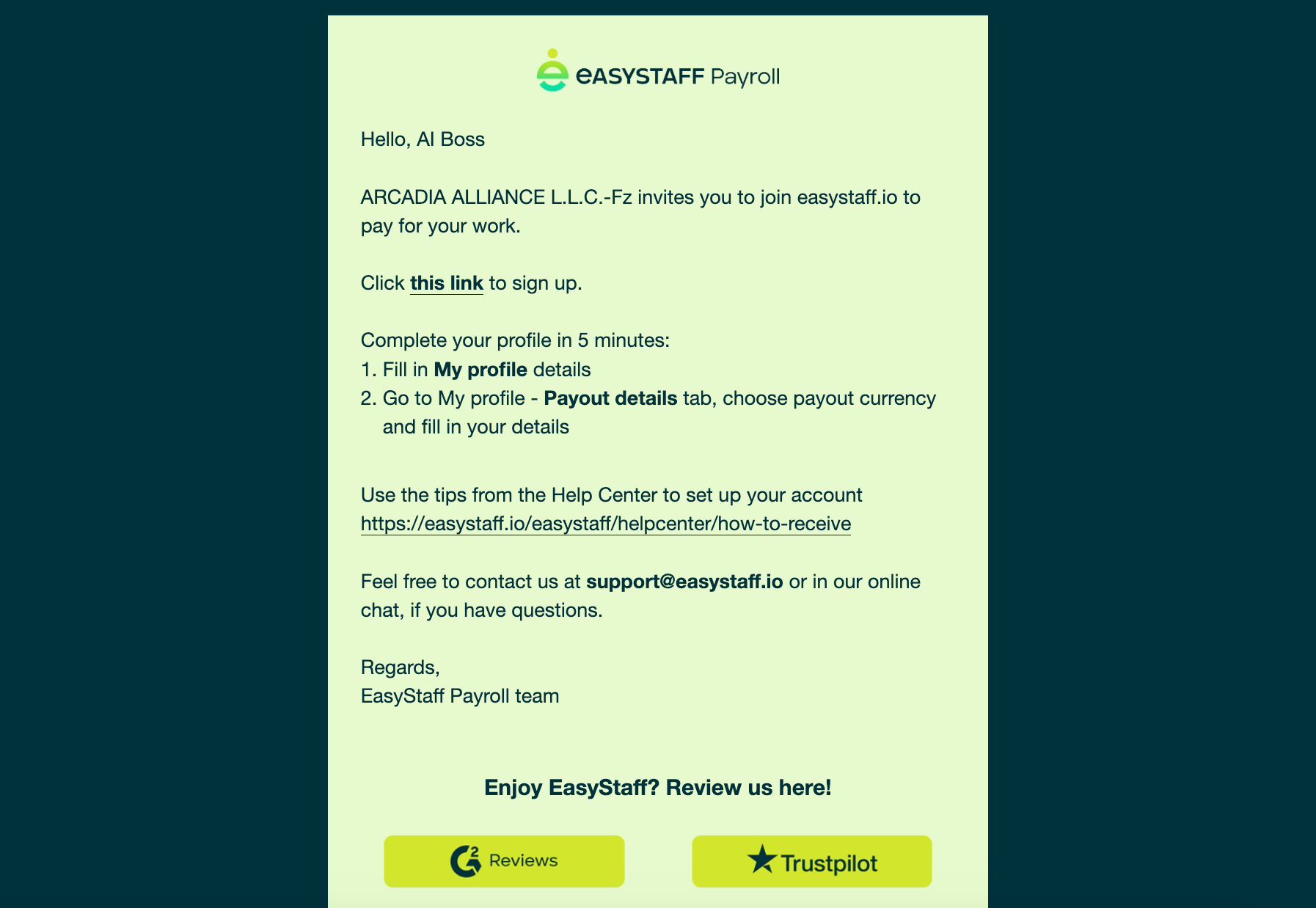
After receiving the email, open it and click the «this link» button to proceed to registration.
2 · Registration
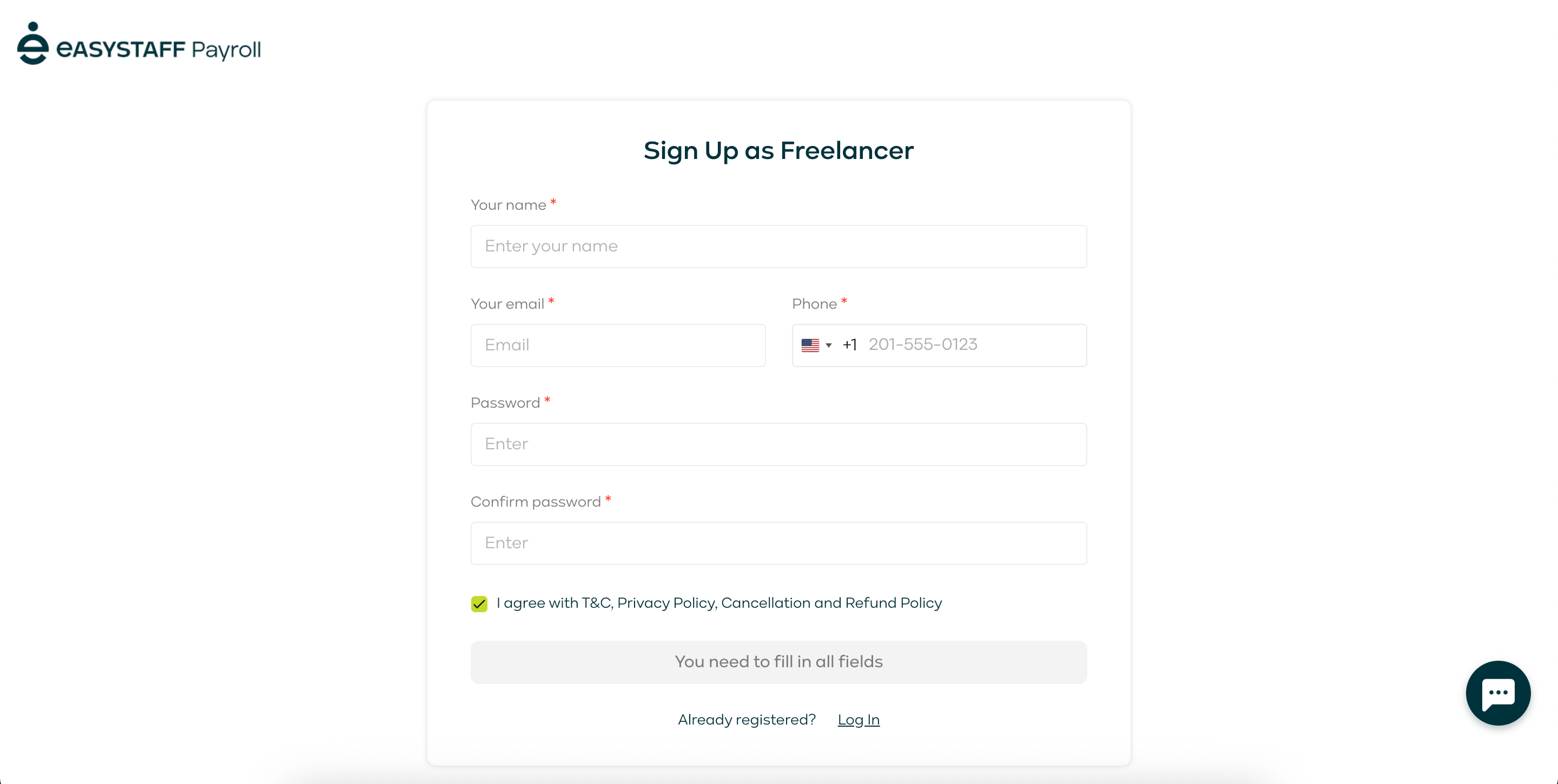
After following the link you will be redirected to the EasyStaff registration page.
During registration enter your real data.
After entering the EasyStaff dashboard you will be asked to enter your personal data again.
3 · Receiving and Confirming the Task
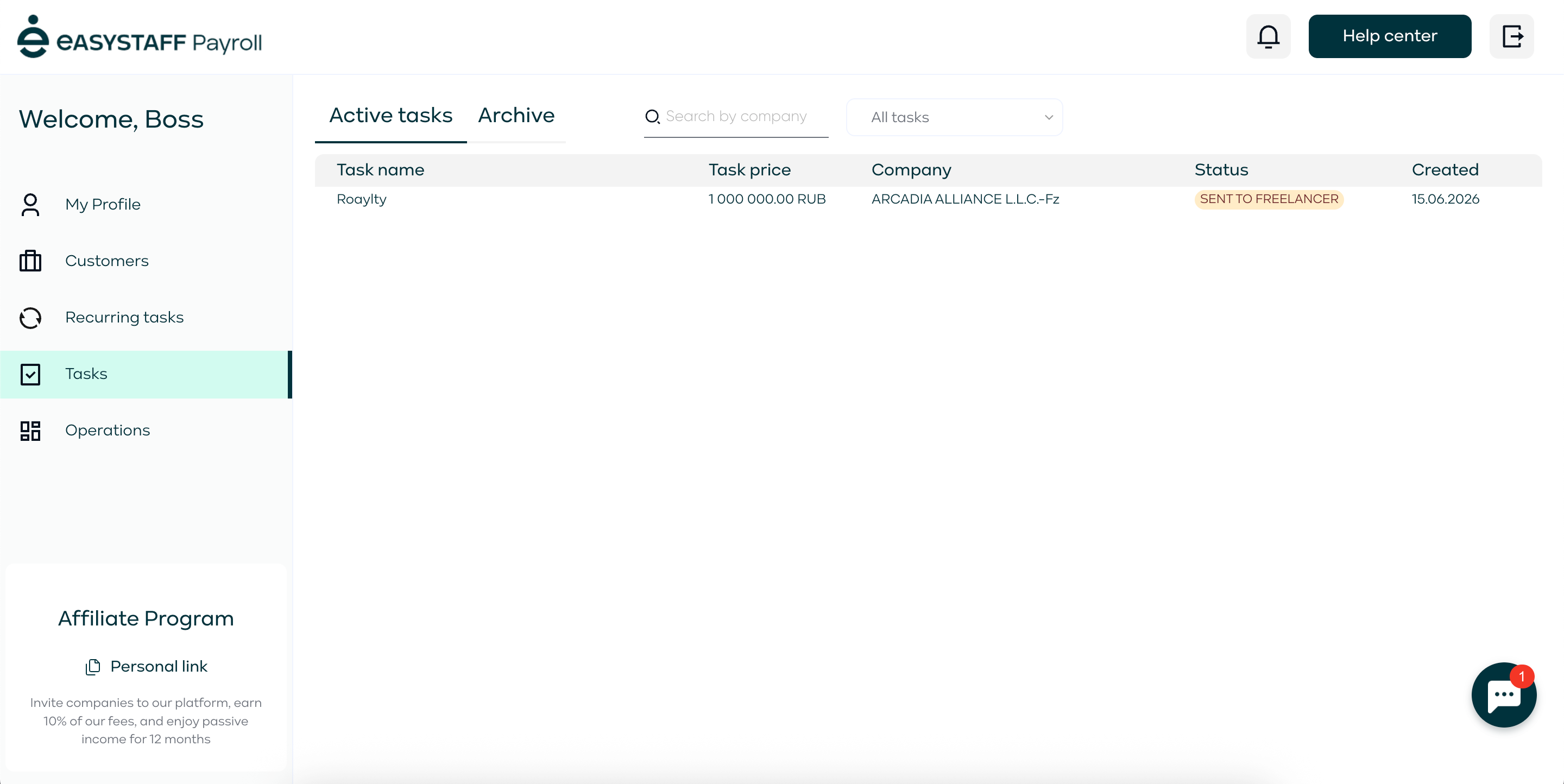
After your registration our team will send you a task that will ensure the transfer of funds to your EasyStaff account.
You will receive a notification at the specified email, and the task will also appear in the EasyStaff dashboard under the «Tasks» section.
3.1 · Uploading a File for Confirmation
Go to the task page by clicking on it.
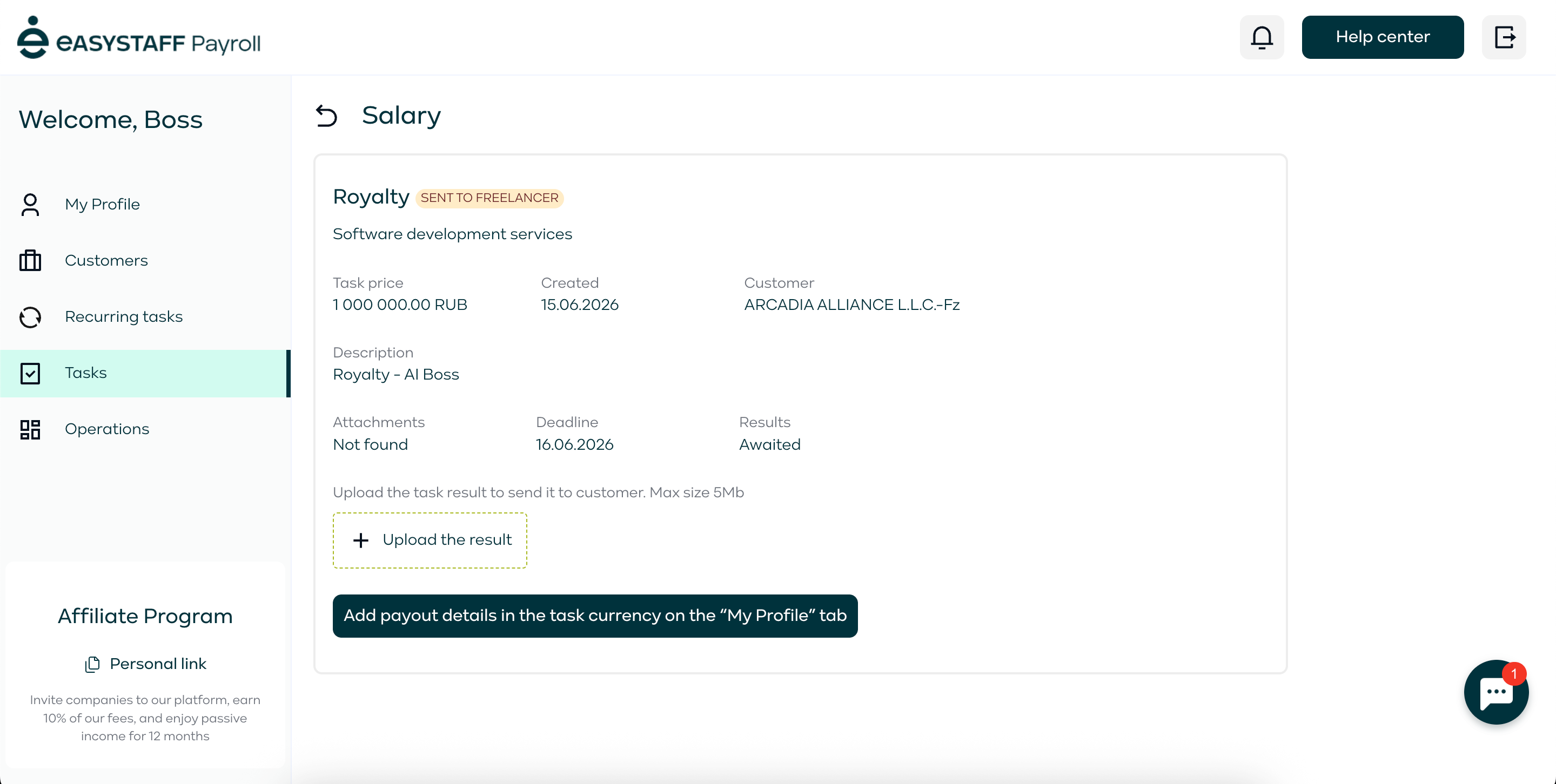
Click the «Upload the result» button and upload a PDF invoice from your Arcadia personal account.
3.2 · Saving the Payout Method
Click the «Add payout details in the task currency on the "My Profile" tab» button.
In the Payout method field select «Russian bank accounts».
You will need to provide:
- Account number
- Recipient's full name
- Bank BIC
You can find all of this in the details section of your banking app.
Important: some Russian banks are currently under sanctions. Only the banks listed below are available for withdrawal.
4 · Waiting for Your Payout
Once all steps are completed, we will receive a notification, confirm the transfer — and you will be able to withdraw your funds.
Thank you for your patience! 🙏
📌 Recommendations
- Always enter real data and follow the instructions — this speeds up the process and avoids issues.
- If you have any questions — reach out to support, we are happy to help!